
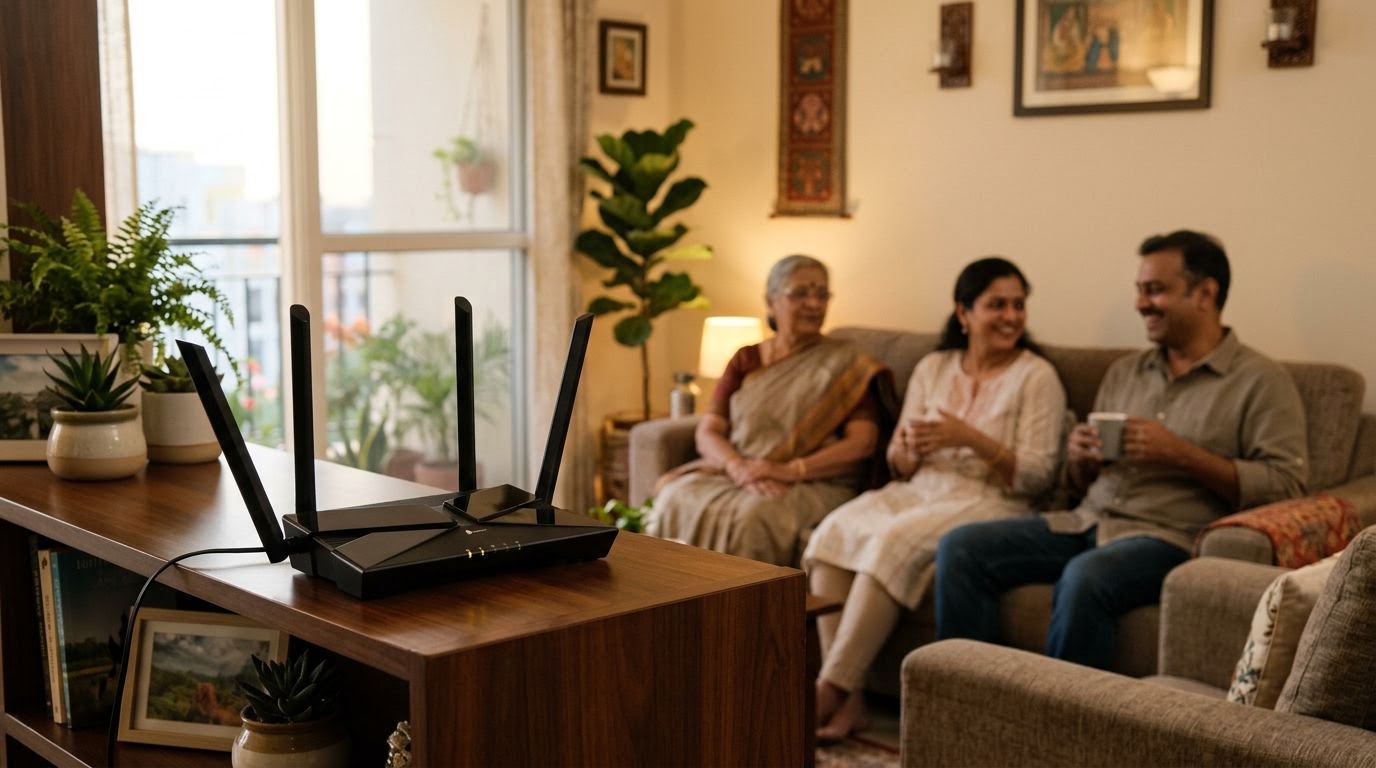
Your home Wi-Fi router is the gateway to all your personal devices, from smartphones to smart TVs. Learn the essential settings you must change immediately to protect your family's data from cyber threats.
In modern Indian households, high-speed broadband has become as essential as electricity and water. From online schooling and remote office work to streaming entertainment and managing smart appliances, our daily lives revolve around the home network. However, while we carefully lock our front doors and install security cameras, we often neglect the digital front door of our homes: the Wi-Fi router. A poorly secured router is an open invitation to cybercriminals, who can intercept sensitive financial data, compromise personal devices, or even use your internet connection for illegal activities. Securing your home Wi-Fi router does not require an IT degree; it simply requires changing a few critical default settings. By taking control of your home network security, you can establish a robust first line of defence against online threats.
Why Your Home Network Needs Immediate Attention
Many families assume that cyber threats only target large corporations or high-profile individuals. In reality, automated bots scan millions of IP addresses daily, looking for vulnerable home routers with default settings. If an intruder gains access to your router, they can monitor your internet traffic, redirect you to fraudulent banking websites, or hijack connected smart devices like baby monitors and security cameras. Under Indian cyber laws, including the Information Technology Act, 2000, the registered owner of an internet connection can face severe legal scrutiny if their IP address is found associated with cybercrimes or malicious activities, even if a neighbor or stranger committed the act by hacking into their unsecured Wi-Fi. This makes router security not just a matter of data privacy, but also of legal protection for your family.
Change Your Router Admin Credentials and Wi-Fi Password
Understanding the Two Passwords
Every router has two completely different passwords, and both must be changed. The first is the Wi-Fi security key, which is the password you enter on your phone, tablet, or laptop to connect to the internet. The second is the router administrator password, which allows anyone to log into the router's configuration panel. This panel is usually accessed by typing a specific IP address, such as 192.168.0.1 or 192.168.1.1, into a web browser. If you leave this admin password at its default setting, anyone within range of your Wi-Fi signal can easily take complete control of your router.
Replacing Default Admin Credentials
Most routers ship with incredibly weak default admin credentials, such as admin/admin or admin/password. Hackers keep databases of these default settings and use them to gain access to home networks. The very first step of router security is to log into the admin console, locate the administration or system tools menu, and change this default password to a strong, unique passphrase. Ensure this password is distinct from your actual Wi-Fi password and is stored securely in a password manager.
Upgrade Security Encryption to WPA3 or WPA2
Wireless encryption scrambles the data travelling between your device and the router, ensuring that anyone intercepting the signal cannot read your private information. Selecting the right encryption protocol is vital for maintaining a secure home network.
Why You Must Avoid Outdated Standards
Older security protocols like WEP (Wired Equivalent Privacy) and WPA (Wi-Fi Protected Access) are highly vulnerable and can be cracked in minutes using freely available software. If your router is configured to use these outdated standards, your passwords, emails, and financial transactions are highly exposed to anyone nearby.
Transitioning to WPA2 and WPA3
You should navigate to your router's wireless security settings and ensure the security mode is set to at least WPA2-Personal (AES). If you have a modern router purchased in the last few years, look for the newer, more secure WPA3 standard. WPA3 provides robust protection against password-guessing attacks and ensures better individual data encryption on the network. If you have older devices in your household that do not support WPA3, choose the transition mode (WPA2/WPA3 Mixed) to ensure compatibility while keeping newer devices highly secure.
Create a Dedicated Guest Network for Visitors and IoT Devices
Most modern routers allow you to broadcast a secondary Wi-Fi network, commonly called a Guest Network. This is an incredibly effective tool for both privacy and security in an Indian household.
Isolating Guests and Domestic Staff
When relatives, friends, or domestic staff ask for your Wi-Fi password, you do not have to give them access to your primary network. By hosting them on a guest network, they can access the high-speed internet, but they cannot see or interact with your family's personal laptops, network-attached storage drives, or private smart devices. This prevents accidental malware transmission from their devices to yours.
Securing Smart Home and IoT Devices
Smart appliances, smart TVs, and smart lighting often have weaker built-in security than smartphones or computers. If a hacker compromises a cheap smart bulb on your primary network, they can lateral-move to your personal laptop. By placing all smart home devices, including your e-Surveillance Services and security cameras, on an isolated guest network, you ensure that even if one device is compromised, your primary family devices remain safe. For modern homes utilizing Secure & Smart Access Control systems, protecting the underlying network is paramount to keeping physical access points secure.
Disable Risky Features: WPS and UPnP
Many routers come with convenient features enabled by default that pose severe security risks to your home network. Disabling these features is a quick way to harden your router against attacks.
Turn Off Wi-Fi Protected Setup (WPS)
WPS is designed to let you connect devices to your Wi-Fi by simply pressing a physical button on the router or entering an 8-digit PIN. However, the PIN method is highly vulnerable to brute-force hacking tools. It is strongly recommended to log into your router settings and disable WPS entirely. Connecting devices manually by entering the password is much safer.
Disable Universal Plug and Play (UPnP)
UPnP allows devices on your network, like gaming consoles or smart TVs, to automatically open ports on your router to communicate with the internet. While convenient, malicious software can exploit UPnP to bypass your router's firewall and open backdoors into your network without your knowledge. Disable UPnP in your router's advanced settings and configure port forwarding manually only when absolutely necessary.
Keep Your Router Firmware Updated
Just like your smartphone operating system, your router runs on software called firmware. Manufacturers regularly release firmware updates to patch newly discovered security vulnerabilities and improve performance. An outdated router is an easy target for automated exploits. Log into your router's administration page once every few months to check for firmware updates. Many modern routers offer an Auto-Update feature; ensure this is enabled so that critical security patches are applied automatically overnight. If your router is more than five to seven years old and no longer receives firmware updates from the manufacturer, it has reached its end-of-life and should be replaced to maintain proper home network security.
Checklist: Essential Steps to Secure Your Router Today
Here is a practical checklist you can complete in under twenty minutes to secure your home Wi-Fi network:
- Log into your router's admin panel using the default IP address.
- Change the default administrator password to a strong, unique passphrase.
- Change the default Wi-Fi network name (SSID) so it does not reveal your router's model or your family's surname.
- Change the Wi-Fi security protocol to WPA3 or WPA2-AES with a strong password.
- Enable a separate Guest Network for visitors and smart home IoT devices.
- Disable WPS (Wi-Fi Protected Setup) and UPnP (Universal Plug and Play).
- Check for and install the latest firmware updates.
- Disable remote management, ensuring the router settings can only be accessed by devices physically connected to the network.
Key Takeaways
- Always change the default admin credentials of your router, not just the Wi-Fi password, to prevent unauthorized configuration changes.
- Use WPA3 or WPA2-AES encryption to shield your wireless data from interception and cracking.
- Create an isolated Guest Network to separate visitors and smart home IoT devices from your family's sensitive computers and phones.
- Disable vulnerable features like WPS and UPnP to block common backdoor entry points for hackers.
- Enable automatic firmware updates to ensure your router is always patched against the latest cyber threats.
How STSS Can Help
At S. Tiger Security Service, we understand that modern safety requires a seamless integration of physical protection and digital vigilance. From securing your physical premises to designing advanced, secure network-connected security systems, our team provides comprehensive solutions for housing societies, offices, and residences. If you are looking to secure your property with state-of-the-art, professionally configured security systems, visit our Request a security quotation page to speak with our experts today.
Frequently Asked Questions
How do I find my router's IP address to change settings?
On a Windows PC, open Command Prompt and type 'ipconfig' to find the 'Default Gateway' IP address. On a Mac, go to System Settings, click Network, select your active connection, click Details, and look for the IP address next to Router. On mobile devices, check the details of your connected Wi-Fi network under settings.
Should I hide my Wi-Fi network name (SSID)?
Hiding your SSID (network name) provides very little real security. Hackers can easily find hidden SSIDs using free network scanner tools. It is far more effective to keep the SSID visible but protect it with a strong WPA2 or WPA3 password and disable WPS.
What is the risk of keeping UPnP enabled on my router?
Universal Plug and Play (UPnP) allows smart devices to open ports on your router automatically. While convenient for gaming consoles, malware on a compromised device can exploit UPnP to open unauthorized backdoors into your network, bypassing your router's built-in firewall.
How often should I reboot or restart my home router?
Rebooting your router once a month is a good practice. It clears the router's memory, resolves connectivity issues, and can disrupt certain temporary malware strains that reside only in the router's volatile memory (RAM).
Can someone hack my Wi-Fi if they are not near my house?
Generally, a hacker must be within the physical range of your router's wireless signal (usually 50 to 100 feet) to attempt a direct Wi-Fi hack. However, if remote management is enabled on your router, they can access your settings from anywhere in the world over the internet. This is why remote management must always be disabled.
STSS provides trained guards, e-surveillance, access control and turnkey security across India.
This article was drafted with the help of an AI writing assistant and published by the STSS knowledge desk for general awareness only. It is not legal or professional advice. In an emergency, dial 112. Report cyber fraud on 1930 or cybercrime.gov.in.